> ## Documentation Index
> Fetch the complete documentation index at: https://docs.keyflow.space/llms.txt
> Use this file to discover all available pages before exploring further.
# Gmail Trigger
> Trigger a workflow whenever you receive an email
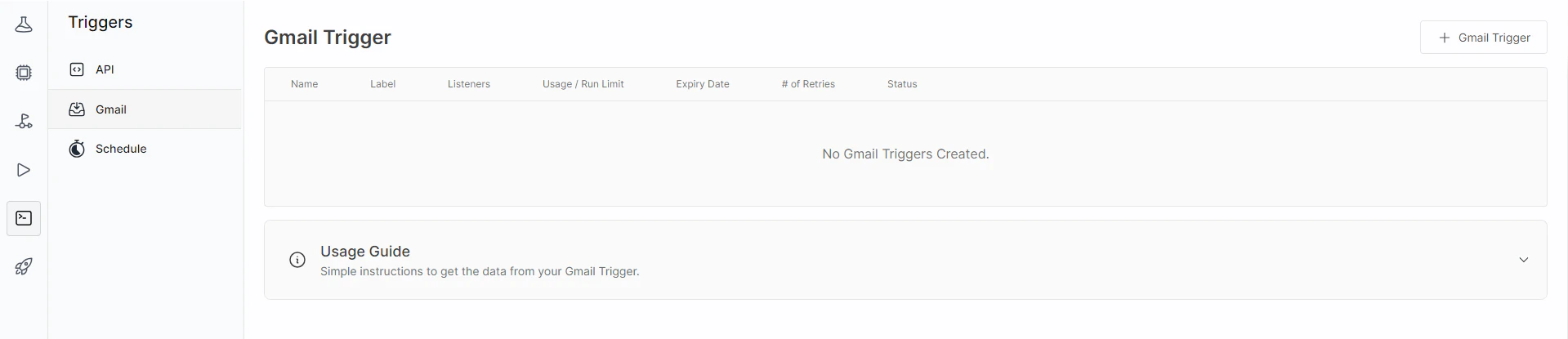
To trigger a workflow whenever you receive an email, you can use the Gmail Trigger. This keeps a watch on your Gmail and triggers a workflow everytime a new email is received. You can also watch for certain email labels e.g., `INBOX`, `SPAM`, `IMPORTANT`
Triggers are not available for Free Accounts
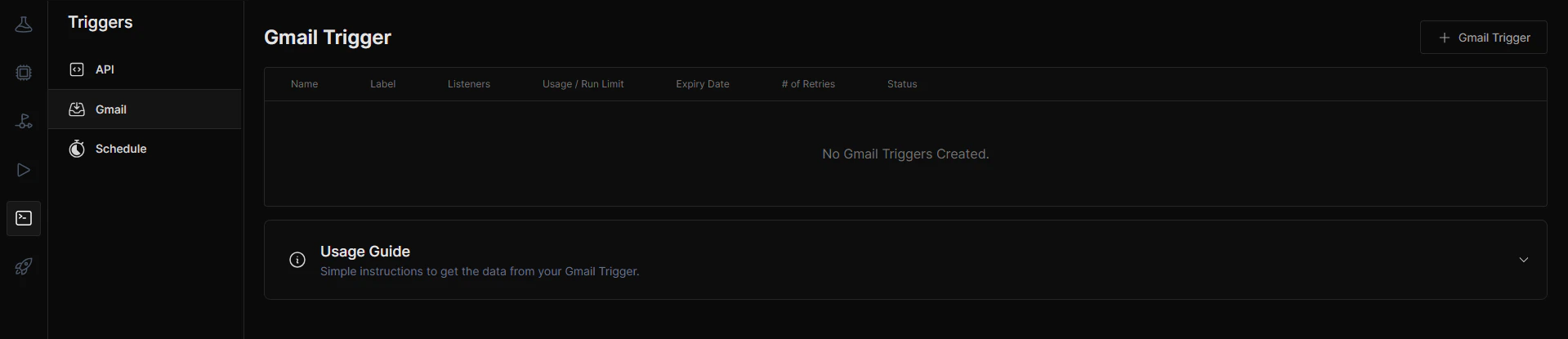
You can find the Gmail Trigger in `Triggers` > `Gmail Trigger`
 ### Create Gmail Trigger
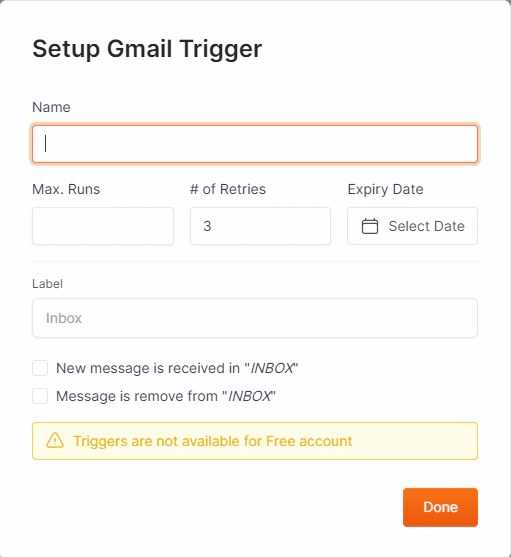
To setup a Gmail Trigger, click on the `+ Gmail Trigger`. It will open a modal where you will enter details regarding the trigger like :
* Name of the Gmail Trigger
* Maximum number of runs allowed by the Trigger
* Expiry Date of the Trigger
* Email Labels you want to keep a watch on.
* Checkboxes for when you want to be notified when a new message is received or removed from the `INBOX`
### Create Gmail Trigger
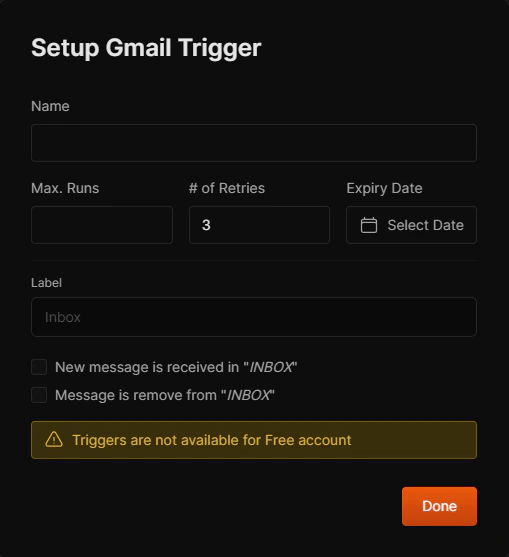
To setup a Gmail Trigger, click on the `+ Gmail Trigger`. It will open a modal where you will enter details regarding the trigger like :
* Name of the Gmail Trigger
* Maximum number of runs allowed by the Trigger
* Expiry Date of the Trigger
* Email Labels you want to keep a watch on.
* Checkboxes for when you want to be notified when a new message is received or removed from the `INBOX`
 To access the data of your Gmail trigger, such as the email's subject, body etc. You'll need to drag an input block into the flow builder and specify the required name in the input\_name of the input block.
* `sender_email` - The email address of the sender.
* `sender_name` - The name of the sender.
* `receiver_name` - The name of the receiver.
* `receiver_email` - The email address of the receiver.
* `email_subject` - The subject of the email.
* `email_body` - The body of the email in plain text.
* `email_date` - The date and time the email was sent or received.
* `email_attachments` - A list of download URLs for the attachments included within the email.
* `message_id` - The message id of the email.
To access the data of your Gmail trigger, such as the email's subject, body etc. You'll need to drag an input block into the flow builder and specify the required name in the input\_name of the input block.
* `sender_email` - The email address of the sender.
* `sender_name` - The name of the sender.
* `receiver_name` - The name of the receiver.
* `receiver_email` - The email address of the receiver.
* `email_subject` - The subject of the email.
* `email_body` - The body of the email in plain text.
* `email_date` - The date and time the email was sent or received.
* `email_attachments` - A list of download URLs for the attachments included within the email.
* `message_id` - The message id of the email.